
What's New?
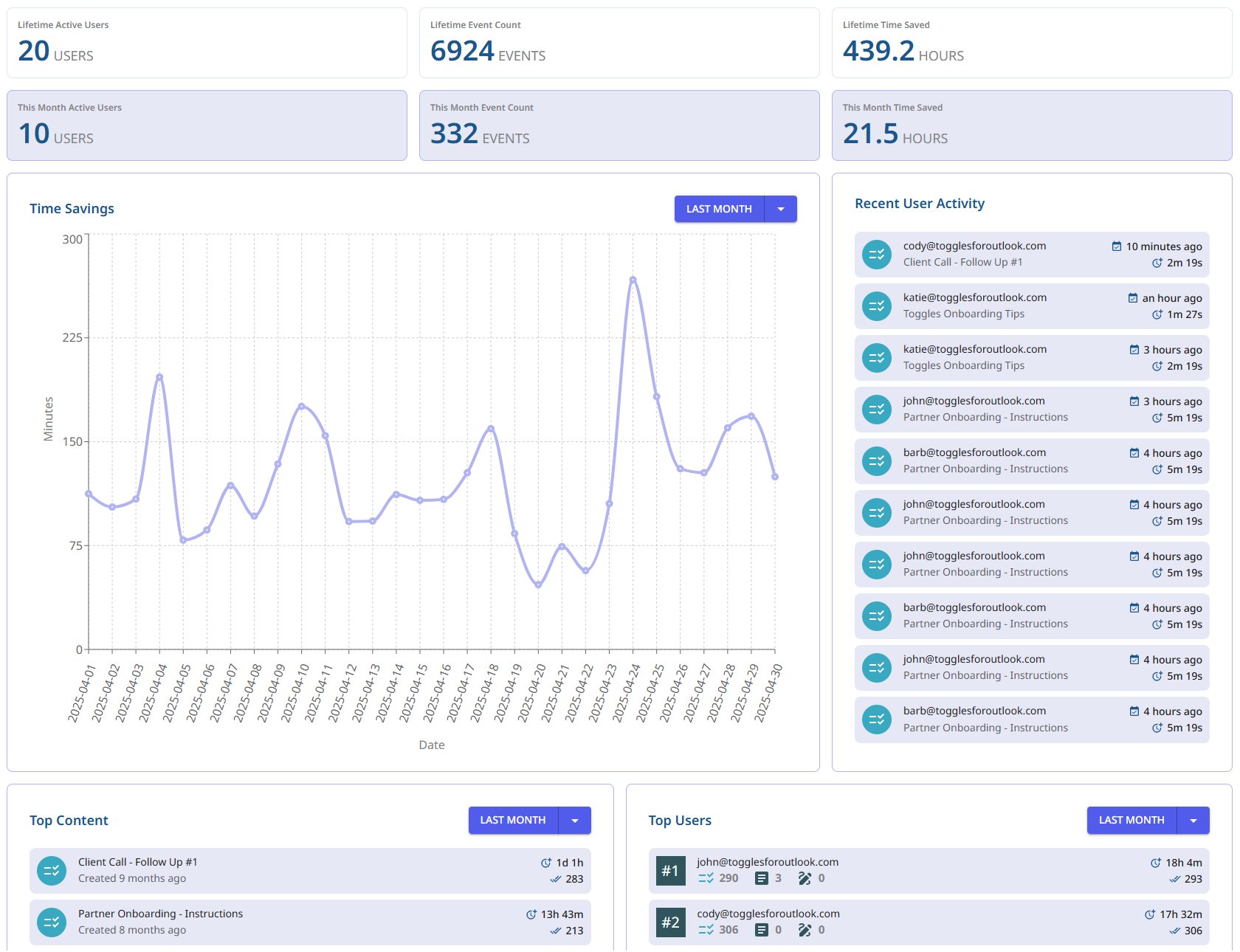
If you're a Business Pro account admin, you now have access to a time savings dashboard showing how many hours your team has saved using Toggles' automated workflows. This isn't a vague estimate—it's based on detailed calculations comparing manual effort versus what Toggles automates.
How We Calculate Time Saved
We want to be fully transparent, so here's the math behind the numbers you'll see:
Typing speed: 50 words per minute (WPM).
Per word: each inserted template or tag is counted by word count, converted to typing time at 50 WPM.
Attachments: 15 seconds saved per attachment.
Recipients: 5 seconds saved per recipient.
Links: 15 seconds saved per inserted link.
Signature selection: 10 seconds saved when the correct signature is auto-inserted.
Scheduled send: 10 seconds saved per scheduled email.
Why It Matters for Business Pro Teams
When you're managing a team, it's not just about individual time savings—it's about collective impact. With this feature, admins can see the total hours saved across the team, helping justify the investment and highlighting the real-world ROI of using Toggles.

Who Gets Access?
This feature is available exclusively to Business Pro account admins. Regular users won't see time savings on their individual emails (yet)—this rollout focuses on giving team leaders the visibility they need.
What's Coming Next?
We're working on even more insights for teams and individuals. Expect to see features that help you understand not just how much time you're saving, but also how you're using Toggles to optimize your workflows. This is just the first step in a series of enhancements aimed at making Toggles for Outlook even more powerful and user-friendly.
Questions?
Want to know more about how time savings are calculated or how to access your team's dashboard? Contact us—we're here to help.
Thanks for using Toggles for Outlook to power up your team's productivity!